
Badges
System badges, seasonal badges, custom badges, badge order, colours, gradients, per-badge colour and the icon shimmer.
Badges appear next to your username on your profile. Some are granted by the system, some are claimed, and some you create yourself.
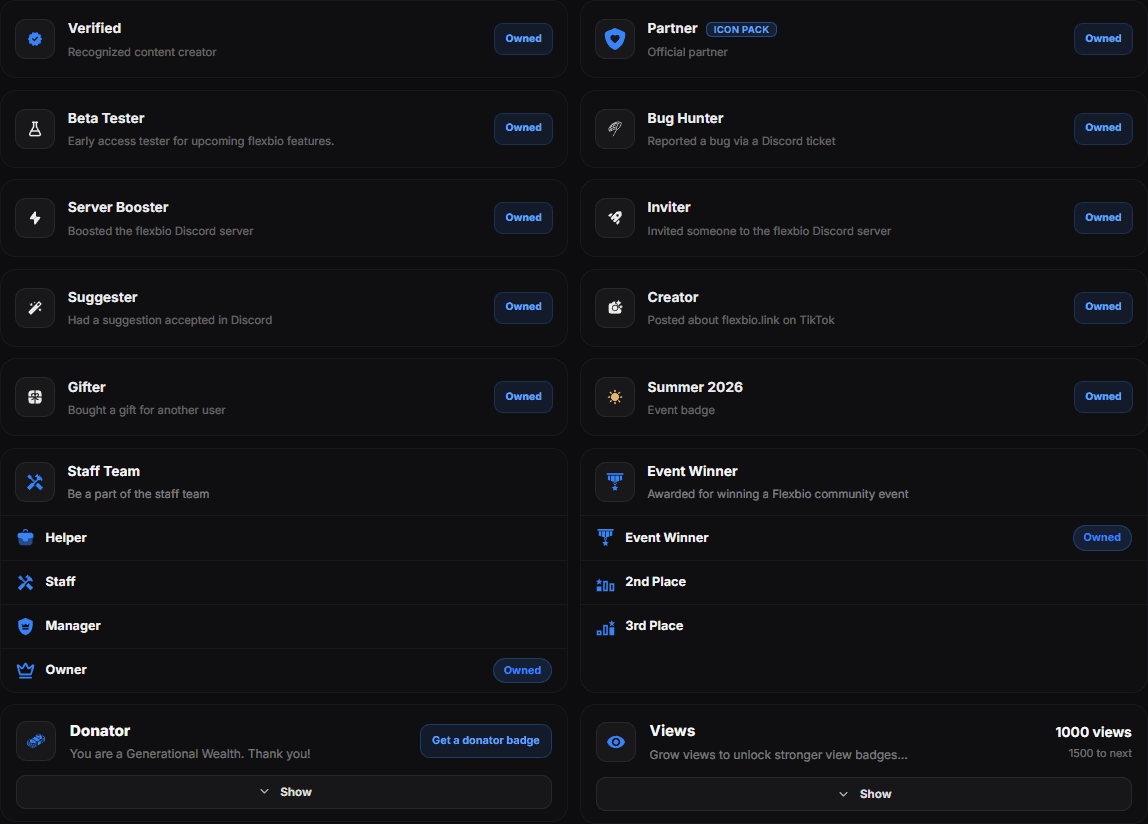
Where badges come from
| Type | How you get it |
|---|---|
| System badges | Granted for a status — see the table below |
| Seasonal badges | Claimed during a limited window; Summer 2026 is the current event badge |
| Custom badges | Created by you in Customize → Badges |
The system badges
| Badge | How it is earned |
|---|---|
| Staff Team | Be part of the staff team — shown in four tiers by role: Helper, Staff, Manager and Owner |
| Verified | Recognised content creator — also available in the Shop |
| Partner | Official partner — see the Partner Program |
| Beta Tester | Test upcoming flexbio features early — given by staff |
| Bug Hunter | Report a bug via a Discord ticket |
| Server Booster | Boost the flexbio Discord server |
| Inviter | Invite someone to the flexbio Discord server |
| Suggester | Have a suggestion accepted in Discord |
| Creator | Post about flexbio.link on TikTok, approved by staff |
| Gifter | Buy a gift for another user in the Shop |
| Event Winner | Win a Flexbio community event — Event Winner, 2nd Place or 3rd Place |
| Donator | Support flexbio.link with a donation — five tiers, see the Shop |
| Leaderboard Rank | Rank in the leaderboard top 3 |
| Views | Unlocks automatically as your view count grows |
Leaderboard Rank and Views are the two that are never granted to you — they are recomputed from your live numbers, so they appear and disappear on their own.
Claiming
Badges that need claiming show a Tap to claim your badge prompt. Seasonal badges are only claimable while they are available; once the window closes, that month's badge is gone.
Creating a custom badge
Use Create Custom Badge: give it a name and an icon, and it joins your badge row. Custom badges are cosmetic — they carry no status.
Order and visibility
You choose which badges are shown and in what order. Hiding a badge does not remove it from your account; it only stops rendering it on the profile.
The three-dot menu of a badge row holds a few extra choices. On Verified, Verified appearance picks where the mark sits: In badge row with the other badges, or Beside nickname, right after your name. On Donator, Choose your badge picks which of the tiers you own is shown — the highest tier unlocks every tier below it.
Colour and shimmer
Customize in the Badges header opens Badge Customization, which holds every colour setting for the badge row.
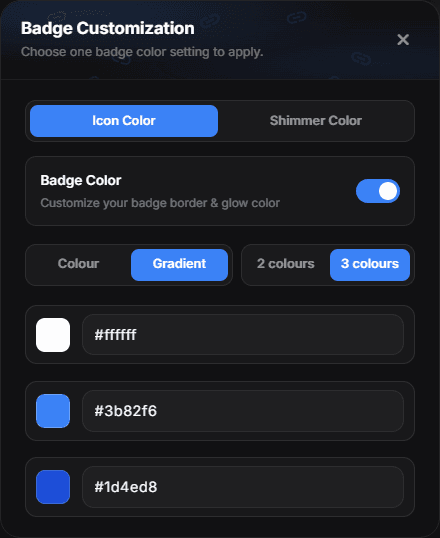
| Tab | What it sets |
|---|---|
| Icon Color | The tint applied to the badge icons |
| Shimmer Color | The colour of the shine that travels across the row |
Both tabs offer the same two modes:
- Theme — follows your profile's accent colour, so the badges restyle themselves whenever you change your palette.
- Custom — one fixed colour you pick.
Gradient badges
In Custom on the Icon Color tab you also choose how the colour is painted:
- Colour — one flat tone across every badge.
- Gradient — two or three colours blended across the badge. The 2 colours / 3 colours buttons beside the mode decide how many swatches you get.
The blend runs across each badge individually, not once across the whole row, so a badge at the end of the row carries the same full gradient as the first one. It applies to vector badges and to image badges alike.
Gradient needs the colour switch on
Gradient is a way of painting the badge tint, so it does nothing while the Icon Color switch is off. Turn the switch on first, then pick Gradient.
Icon Shimmer
On the Shimmer Color tab, Icon Shimmer adds a highlight that runs along the badge row, brightening each badge in turn. It is at its most visible when the shimmer colour differs from the badge colour — a white shimmer on white badges has almost nothing to work with, because white cannot get any brighter.
Shimmer style picks how the shine moves:
- Pulse — the highlight brightens across the badge and fades, in place.
- Sweep down — the highlight travels down through the badge on a diagonal.
- Sweep up — the same diagonal highlight, travelling up through the badge.
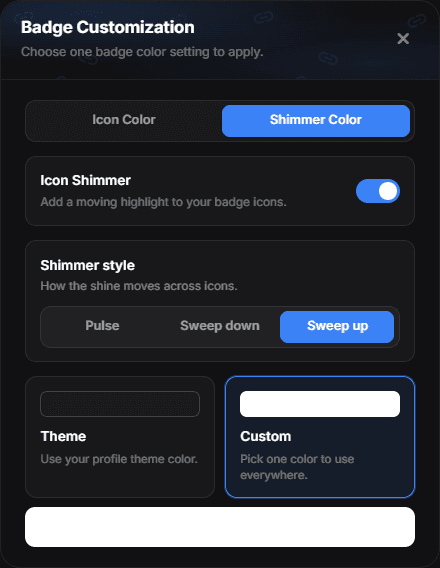
The two are a matter of taste rather than one being better: Pulse reads as a soft heartbeat down the row, Sweep down as a light passing over it. Both keep each badge's own colour and brighten toward the shimmer colour as they pass.
Sweep up is the same light as Sweep down, moving through the badge from the bottom to the top instead.
The arrows on the badge capsule stay unstyled on purpose — they are navigation, not badges, so no tint, gradient or shimmer is applied to them.
Customizing one badge
Any badge can have a look of its own. Open the ⋯ menu on its row and use the brush — it opens Customize: … with the badge's name, holding the same two tabs as Badge Customization.

- Icon Color — the Badge Color switch, then Colour or Gradient. A single colour follows your profile Theme or is Custom; a gradient takes 2 colours or 3 colours.
- Shimmer Color — the Icon Shimmer switch, its style, and a Theme or Custom shimmer colour.
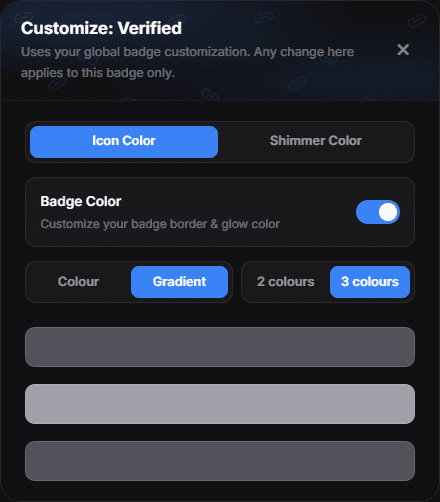
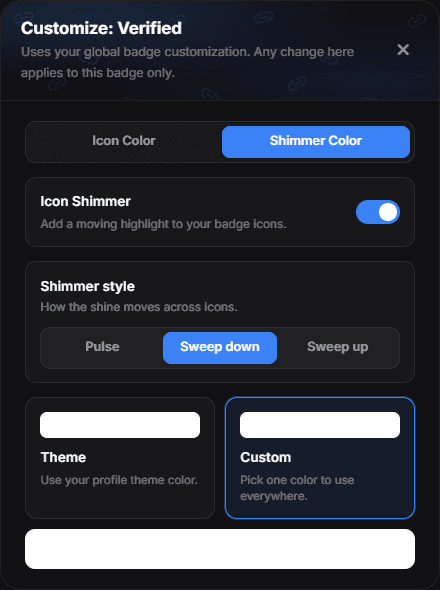
The window starts from your global badge settings, and every change applies to this badge only. Once the badge has settings of its own, a reset button appears next to the title and returns it to the global settings.
A colour set here always wins over the global tint, and unlike the global tint it also applies to image badges you uploaded yourself — picking a colour for one specific badge is taken as an instruction to recolour it.
Badge glow is a separate switch
Badges Glow lives under Appearance → Glow Effects and works on its own. Turning Icon Color and Icon Shimmer off does not turn the glow off — if your badges still look lit up, that is the switch you are looking for. The glow takes each badge's own colour, so it follows any tint you set without needing one.
A badge you earned is not showing
Check that it is not hidden in the badge list, that the Discord account it was granted on is the one connected here, and reload your profile in a private window. Bot-granted badges can take a short while to appear.
View badges
The dashboard also has view-based badges that unlock as your profile grows. They follow your Analytics numbers automatically — there is nothing to claim.