Socials
Social icons, link mode versus text mode, icon size, shape, background and glow.
Customize → Links manages the compact icon row on your profile. Socials cover the platforms with a recognisable logo — Discord, Spotify, GitHub, TikTok, Telegram, Steam and more — plus custom URLs. Socials live on the same page as your link buttons — there is no separate Socials entry in the sidebar.
Add a social
Choose the platform and enter your handle or URL. For anything without a preset, use Add Custom URL Social and supply your own icon.
Link mode vs text mode
Every social has a Social Mode:
| Mode | Behaviour |
|---|---|
| Link | The icon is clickable and opens the destination |
| Text | The icon shows copyable text on your profile instead of navigating |
Text mode is the right choice for a Discord tag or an in-game name — something a visitor needs to copy, not open.
Styling
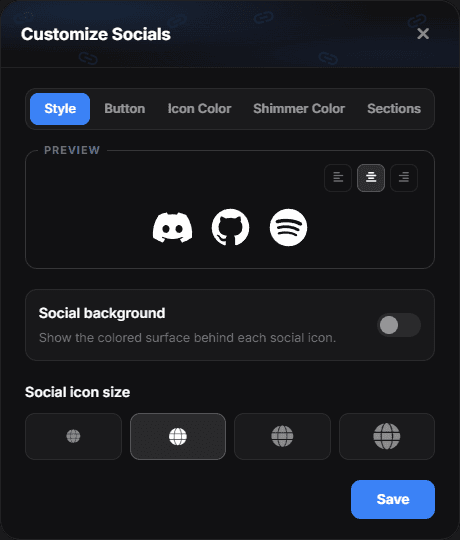
The Customize button on the Links page opens the styling panel. It holds a live preview and:
- Alignment — the three buttons above the preview put the icon row on the left, in the centre or on the right.
- Social background — shows or hides the coloured surface behind each icon, plus its colour and corner radius (below).
- Social icon size — four sizes, picked from the row of samples.
Glow for the social icons is not here — it sits in Visuals.
Social background
With the switch on, the background gets its own card holding two more controls:
- Social border radius — from a square tile to a full circle behind each icon.
- Background colour — the surface colour. Left alone it is the default translucent white, which sits quietly on any wallpaper; the palette also offers Default to hand it back.
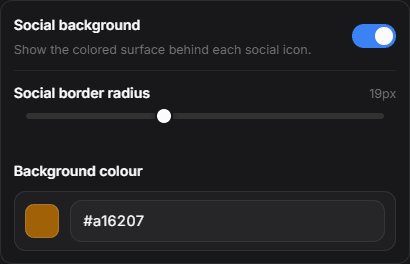
The colour applies to the surface, not to the icons. Icon colour lives in the Icon Color tab of the same dialog — see Links.
Pick a colour that is not your wallpaper
The point of the background is to lift the icons off the page. A surface close to your wallpaper colour makes them harder to read than no surface at all — if you want a subtle look, lower the radius instead of matching the colours.
Order
Drag the icons to reorder. Put the platform you actually want traffic on first — the leftmost icon gets a disproportionate share of clicks.
Analytics has a Most Clicked Socials panel. If an icon has been on your profile for weeks with no clicks, it is costing you space for nothing.
Icons that do not appear
If an icon is missing on the live page, check that the entry has a destination saved, that it is not hidden by the section toggle in Layout, and reload in a private window to rule out a cached page.